What is JSON Formatting (Pretty-Printing) and Why Does It Matter?

Advertisement
I got an API response the other day that looked like this:
{"status":"success","data":{"users":[{"id":1,"name":"John","email":"john@example.com","preferences":{"theme":"dark","notifications":true}},{"id":2,"name":"Jane","email":"jane@example.com","preferences":{"theme":"light","notifications":false}}]}}
One line. All mashed together. Impossible to read. I spent five minutes just trying to figure out where one object ended and another began.
Then I formatted it, and suddenly it made sense:
{
"status": "success",
"data": {
"users": [
{
"id": 1,
"name": "John",
"email": "john@example.com",
"preferences": {
"theme": "dark",
"notifications": true
}
},
{
"id": 2,
"name": "Jane",
"email": "jane@example.com",
"preferences": {
"theme": "light",
"notifications": false
}
}
]
}
}
Same data. Completely different readability. That's the power of JSON formatting.
Let me explain what JSON formatting is, why it matters, and how to do it.
What is JSON Formatting?
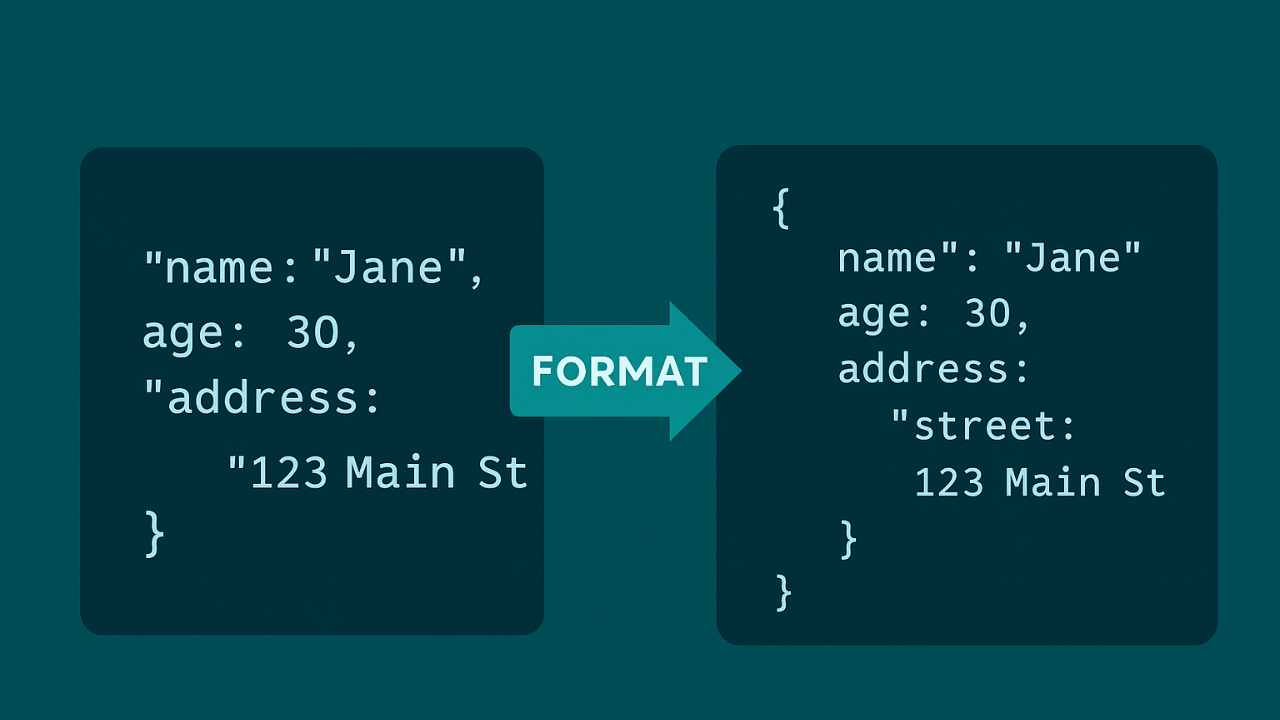
JSON formatting (also called "pretty-printing") is the process of taking compact, hard-to-read JSON and making it readable by adding indentation, line breaks, and proper spacing.
Think of it like this: unformatted JSON is like a paragraph with no spaces or punctuation. Formatted JSON is like that same paragraph with proper spacing, paragraphs, and structure. The information is the same, but one is readable and one isn't.
Unformatted (minified) JSON:
{"name":"John","age":30,"city":"New York","hobbies":["reading","coding"],"address":{"street":"123 Main St","zip":"10001"}}
Formatted (pretty-printed) JSON:
{
"name": "John",
"age": 30,
"city": "New York",
"hobbies": [
"reading",
"coding"
],
"address": {
"street": "123 Main St",
"zip": "10001"
}
}
Same data. The formatted version is just easier to read and understand.
Why Does JSON Formatting Matter?
You might be thinking, "The computer doesn't care how it looks. Why should I?" Here's why it matters:
1. Readability
Formatted JSON is human-readable. You can see the structure, understand the relationships, and find what you're looking for. Unformatted JSON is a wall of text that's nearly impossible to parse with your eyes.
2. Debugging
When something goes wrong, you need to read the JSON to figure out what's happening. Formatted JSON makes debugging 10x easier. You can see nested structures, spot missing properties, and understand the data flow.
3. Code Reviews
If you're sharing JSON in a code review or with a teammate, formatted JSON is essential. No one wants to review a 500-character line of JSON. Formatted JSON makes reviews faster and more effective.
4. Documentation
When documenting APIs or data structures, formatted JSON is a must. It's how you show examples, explain structures, and help others understand your data.
5. Learning
If you're learning JSON or teaching someone, formatted JSON is the only way to go. You can't learn from a wall of text. You need to see the structure.
How JSON Formatting Works
JSON formatting adds:
Indentation: Spaces or tabs to show nesting levels. Each nested level gets indented further.
Line breaks: Each property or array item gets its own line (or logical grouping).
Spacing: Proper spacing around colons, commas, and brackets for readability.
The formatter analyzes the JSON structure and applies these formatting rules consistently.
How to Format JSON
There are several ways to format JSON:
Method 1: Online Formatter (The Easiest)
The fastest way is to use an online formatter like our JSON Formatter:
- Paste your JSON into the input box
- Click "Format" or "Beautify"
- Get beautifully formatted JSON instantly
It's free, instant, and works with any JSON, no matter how complex.
Method 2: Code Editor
Most code editors can format JSON:
VS Code:
- Right-click → "Format Document"
- Or use the keyboard shortcut (Shift+Alt+F on Windows, Shift+Option+F on Mac)
Sublime Text:
- Install the "Pretty JSON" package
- Use the format command
IntelliJ/WebStorm:
- Right-click → "Reformat Code"
- Or use Ctrl+Alt+L (Windows) / Cmd+Option+L (Mac)
Method 3: Command Line
If you're working in the terminal:
Python:
python -m json.tool input.json > output.json
Node.js:
node -e "console.log(JSON.stringify(JSON.parse(require('fs').readFileSync('input.json')), null, 2))"
jq (JSON processor):
jq . input.json > output.json
Method 4: Programmatically
In your code, you can format JSON:
JavaScript:
const data = { name: "John", age: 30 };
const formatted = JSON.stringify(data, null, 2);
console.log(formatted);
The 2 is the indentation level (2 spaces). You can use any number.
Python:
import json
data = {"name": "John", "age": 30}
formatted = json.dumps(data, indent=2)
print(formatted)
Formatting Options
When formatting JSON, you can control:
Indentation Size
Most formatters let you choose how many spaces to use for indentation:
- 2 spaces (most common, recommended)
- 4 spaces (more spacing)
- Tabs (some prefer tabs)
Compact vs. Pretty
You can also go the other way—take formatted JSON and make it compact (minify it):
Formatted:
{
"name": "John",
"age": 30
}
Minified:
{"name":"John","age":30}
Minified JSON is smaller (fewer bytes), which is better for network transmission. Formatted JSON is readable, which is better for humans.
When to Format vs. When to Minify
Format (pretty-print) when:
- You're reading or debugging JSON
- You're sharing JSON with humans
- You're documenting APIs
- You're learning or teaching
- You're doing code reviews
Minify (compact) when:
- You're sending JSON over the network
- File size matters
- You're in production
- You're optimizing performance
The rule of thumb: format for humans, minify for machines.
Real-World Examples
Let me show you some real scenarios where formatting matters:
Example 1: API Debugging
You're debugging an API integration. The response is one long line. You can't see the structure. Format it, and suddenly you can see:
- What properties are available
- How data is nested
- What values are being returned
- Where the problem might be
Example 2: Configuration Files
You're editing a configuration file. It's minified and hard to read. Format it, make your changes, then minify it again for production. Much easier to work with.
Example 3: Data Analysis
You're analyzing JSON data. Formatted JSON lets you:
- See patterns in the data
- Understand relationships
- Spot anomalies
- Make sense of complex structures
Example 4: Documentation
You're writing API documentation. Formatted JSON examples are essential. They show developers exactly what to expect and how the data is structured.
Common Formatting Issues
Sometimes formatting doesn't work as expected. Here's why:
Invalid JSON
If your JSON is invalid, formatters can't format it. Fix the errors first, then format.
Solution: Validate your JSON first using our JSON Formatter. It'll catch errors before you try to format.
Very Large Files
Some formatters struggle with very large JSON files (millions of lines). The browser might slow down or crash.
Solution: Use command-line tools for very large files, or format in chunks.
Special Characters
Sometimes special characters or encoding issues can cause problems.
Solution: Make sure your JSON is UTF-8 encoded and properly escaped.
Best Practices
Here's what I've learned from formatting JSON professionally:
-
Format during development. Keep your JSON formatted while you're working on it. It makes everything easier.
-
Minify for production. Before deploying or sending JSON, minify it to reduce size.
-
Use consistent indentation. Pick 2 spaces or 4 spaces and stick with it across your project.
-
Format before committing. If you're committing JSON files to version control, format them first. It makes diffs readable.
-
Format API responses for debugging. When debugging API issues, format the responses. You'll spot problems faster.
-
Use automated formatting. Set up your editor to auto-format JSON on save. It keeps everything consistent.
Real-World Use Cases
JSON formatting isn't just about making things look pretty—it solves real problems in development workflows:
Debugging API Responses
When an API returns unexpected data, formatted JSON lets you quickly scan the structure, identify missing fields, and spot incorrect values. Without formatting, you're squinting at a wall of text trying to find the problem. For complex API data, check our guide on JSON payloads.
Code Reviews and Documentation
When documenting APIs or reviewing code that generates JSON, formatted examples are essential. They show structure clearly, making it easy for team members to understand expected data formats. Learn more about working with nested JSON for complex structures.
Configuration File Management
Application config files in JSON need to be readable for developers to modify settings confidently. Formatted JSON prevents errors when updating configurations. Compare with YAML for configuration to see format alternatives.
Data Analysis and Exploration
When exploring data from databases or external sources, formatted JSON helps you understand relationships, spot patterns, and identify data quality issues quickly.
Learning and Teaching
If you're learning JSON or teaching others, formatted examples are crucial. You can't learn structure from minified text. For beginners, start with our JSON basics guide.
Common Mistakes to Avoid
Here are formatting pitfalls developers encounter:
1. Committing Minified JSON to Version Control
Minified JSON creates terrible git diffs—you can't see what changed. Always commit formatted JSON and minify only for production. Use JSON minification as part of your build process.
2. Not Validating Before Formatting
If your JSON is invalid, formatting won't fix it—it'll just fail. Always validate JSON first to catch syntax errors before attempting to format.
3. Inconsistent Indentation
Mixing 2-space and 4-space indentation creates messy, hard-to-read files. Pick one standard (2 spaces is most common) and stick with it across your project.
4. Manually Formatting Large Files
Don't manually add indentation to large JSON files—it's error-prone and time-consuming. Use automated tools to ensure consistent, correct formatting every time.
5. Forgetting to Format After Editing
After manually editing JSON, always reformat it. Manual edits often break indentation, making the file harder to read for the next person.
For more on JSON errors, see our guides on common JSON errors and fixing invalid JSON.
Best Practices for JSON Formatting
Follow these practices for optimal JSON formatting:
1. Automate Formatting: Configure your editor to format JSON on save. Most editors (VS Code, WebStorm, Sublime) support this. Automation prevents formatting inconsistencies.
2. Use 2-Space Indentation: This is the most common standard. It's readable without being too spacious. Consistency across your team matters more than the specific number.
3. Format Before Committing: Add a pre-commit hook that formats JSON files automatically. This ensures all committed JSON is consistently formatted.
4. Keep Production JSON Minified: Formatted JSON is for development. Production should use minified JSON to reduce file size and improve load times.
5. Document Formatting Standards: Include JSON formatting rules in your project's style guide. This helps new team members maintain consistency.
6. Use Formatters for Large Files: For JSON files over 1MB, use command-line tools rather than browser-based formatters. They handle large files more efficiently.
For working with JSON in different languages, see our guides on parsing JSON in JavaScript and reading JSON in Python.
Frequently Asked Questions
Does formatting change the JSON data?
No, formatting only changes whitespace (spaces, tabs, line breaks). The actual data, structure, and values remain identical. Formatted and minified versions of the same JSON are functionally equivalent—parsers treat them the same way.
Can I format JSON directly in my code editor?
Yes! Most modern code editors have built-in JSON formatting. In VS Code, right-click and select "Format Document" or use Shift+Alt+F (Windows) / Shift+Option+F (Mac). Configure your editor to format automatically on save for convenience.
What's the difference between formatting and pretty-printing?
They're the same thing. "Pretty-printing" and "formatting" both refer to adding indentation and line breaks to make JSON human-readable. "Beautifying" is another term for the same process.
Should I format JSON in production?
No, production JSON should be minified to reduce file size and improve performance. Format JSON during development for readability, but minify it before deployment. Learn more in our JSON minification guide.
Can formatting fix invalid JSON?
No, formatting tools require valid JSON as input. If your JSON has syntax errors (missing commas, unclosed brackets), you must fix those first. Use a JSON validator to identify and fix errors before formatting.
External Resources
To deepen your JSON formatting knowledge:
- JSON.org - Official JSON specification
- MDN: JSON - JavaScript JSON methods including stringify
- JSON Formatter & Validator - Alternative online tool
- jq Manual - Command-line JSON processor for formatting and more
The Bottom Line
JSON formatting transforms unreadable walls of text into structured, understandable data. It's the difference between struggling to understand your data and seeing it clearly.
Whether you're debugging, documenting, or just trying to understand what's in your JSON, formatting makes everything easier. It's a simple step that saves you time and frustration.
The easiest way to format JSON is with our JSON Formatter. Paste your JSON, click format, and you're done. It's free, instant, and works entirely in your browser with full privacy.
Remember: format for humans, minify for machines. Use formatting when you need to read or understand JSON. Use minification when you need to send it over the network or save space.
JSON formatting isn't optional—it's essential. Once you start using it, you'll wonder how you ever worked without it.
Want to format some JSON right now? Head over to our JSON Formatter and try it. Paste in some unformatted JSON and see the difference. For more JSON tips, explore our guides on JSON validation, opening JSON files, and converting JSON to CSV.
Advertisement
About Kavishka Gimhan
Passionate writer and content creator sharing valuable insights and practical advice. Follow for more quality content and updates.