Top 5 Common JSON Errors (and How to Fix Them)

Advertisement
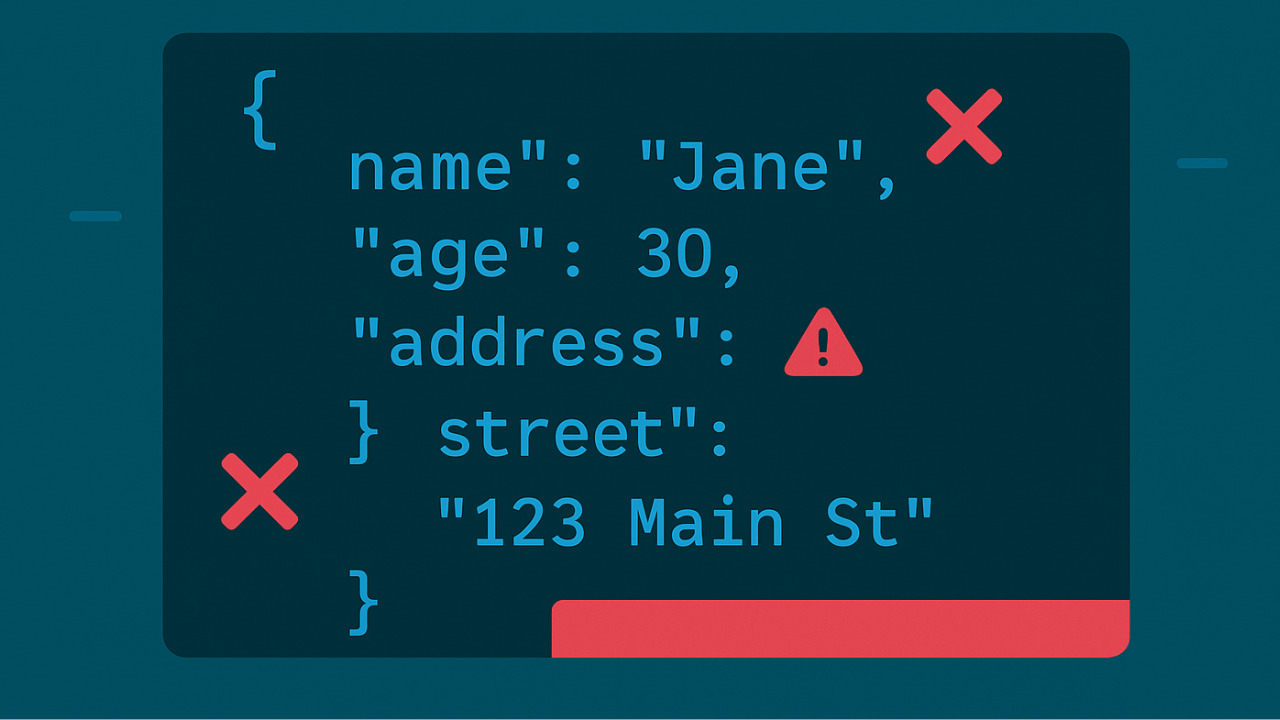
I've been working with JSON for years, and I still make the same mistakes. Not because I'm careless—because these errors are easy to miss. A missing comma here, a trailing comma there, and suddenly your entire JSON file is broken.
After fixing hundreds of JSON errors (and making plenty of my own), I've noticed the same five mistakes keep showing up. They're responsible for probably 90% of all JSON errors I've seen. Once you know what to look for, you can spot and fix them in seconds.
Let me show you the top 5 most common JSON errors, why they happen, and exactly how to fix them.
Error #1: Missing Commas
This is the champion. The most common JSON error by far. You forget a comma between properties, and everything breaks.
What it looks like:
{
"name": "John"
"age": 30,
"email": "john@example.com"
}
The problem: Missing comma after "John". JSON requires commas between all properties in an object (except the last one).
The fix:
{
"name": "John",
"age": 30,
"email": "john@example.com"
}
Why it happens: You're typing fast, you copy-paste and forget to add the comma, or you delete a property and forget the comma was there.
How to spot it: Look for two properties on consecutive lines without a comma. The validator will say something like "Expected ',' or '}'" at the line where the comma is missing.
Pro tip: Use a JSON formatter like our JSON Formatter. It'll catch missing commas instantly and tell you exactly where they are.
Error #2: Trailing Commas
The opposite problem. You add a comma after the last item, which JSON doesn't allow.
What it looks like:
{
"name": "John",
"age": 30,
"email": "john@example.com",
}
The problem: That comma after "john@example.com" is a trailing comma. JSON doesn't allow commas after the last property in an object or the last item in an array.
The fix:
{
"name": "John",
"age": 30,
"email": "john@example.com"
}
Why it happens: You're used to JavaScript, which allows trailing commas. Or you're adding properties and forget to remove the comma from the previous last item.
How to spot it: Check the last property in each object or array. If there's a comma after it, remove it.
Pro tip: Some editors highlight trailing commas. If yours doesn't, use a validator to catch them.
Error #3: Unclosed Quotes
You start a string with a quote but forget to close it. This breaks everything that comes after.
What it looks like:
{
"name": "John,
"age": 30
}
The problem: The opening quote for "name" is never closed. JSON thinks the string continues until it hits the next quote (which is actually the start of "age"), causing a syntax error.
The fix:
{
"name": "John",
"age": 30
}
Why it happens: You're typing quickly, you delete part of a string and forget the closing quote, or you have a quote inside your string that breaks things.
How to spot it: Count your quotes. Every string should have an even number of quotes (opening and closing). If you have an odd number, you have an unclosed quote.
Special case: If you need a quote inside a string, escape it:
{
"message": "He said \"Hello\""
}
Pro tip: Most code editors highlight strings. If your string highlighting looks wrong, you probably have an unclosed quote.
Error #4: Unclosed Brackets
You open a curly brace { or square bracket [ but forget to close it.
What it looks like:
{
"users": [
{
"name": "John",
"age": 30
},
{
"name": "Jane",
"age": 25
]
}
The problem: Missing closing brace } for the second user object. The array closes, but the object inside doesn't.
The fix:
{
"users": [
{
"name": "John",
"age": 30
},
{
"name": "Jane",
"age": 25
}
]
}
Why it happens: Complex nested structures are easy to mess up. You add nested objects or arrays and lose track of what's open and what's closed.
How to spot it: Count your brackets. Every { needs a }, every [ needs a ]. They should match. Most code editors have bracket matching—use it.
Pro tip: Use a JSON formatter. It'll show you exactly where brackets don't match.
Error #5: Single Quotes Instead of Double
JSON requires double quotes for strings. Single quotes aren't allowed.
What it looks like:
{
'name': 'John',
'age': 30,
'city': 'New York'
}
The problem: JSON only allows double quotes " for strings. Single quotes ' aren't valid JSON syntax.
The fix:
{
"name": "John",
"age": 30,
"city": "New York"
}
Why it happens: You're used to JavaScript object literals, which allow single quotes. Or you're copying from JavaScript code and forget JSON is stricter.
How to spot it: Look for single quotes. Every string should use double quotes. Keys must also use double quotes.
Pro tip: Use find-and-replace to fix this quickly: find ' and replace with " (but be careful with strings that contain apostrophes).
Bonus: Comments (Not Allowed)
This isn't in the top 5, but it's worth mentioning because it trips people up:
What it looks like:
{
"name": "John",
// This is a comment
"age": 30
}
The problem: JSON doesn't support comments. No //, no /* */. Comments will break your JSON.
The fix: Remove all comments. If you need documentation, keep it in a separate file or use a format that supports comments (like JSONC or YAML).
Quick Reference: How to Fix Each Error
Here's a cheat sheet for when you encounter these errors:
| Error | How to Find | How to Fix |
|---|---|---|
| Missing Comma | Look for properties without commas between them | Add comma after each property (except last) |
| Trailing Comma | Check last item in objects/arrays | Remove comma after last item |
| Unclosed Quotes | Count quotes (should be even) | Add missing closing quote |
| Unclosed Brackets | Count { vs } and [ vs ] |
Add missing closing bracket |
| Single Quotes | Look for ' instead of " |
Replace all ' with " |
The Fastest Way to Find and Fix Errors
Instead of manually checking for these errors, use a validator:
- Paste your JSON into our JSON Formatter
- Click "Validate"
- Read the error message—it tells you exactly what's wrong and where
- Fix the error
- Validate again
The validator does the detective work for you. Instead of staring at your JSON trying to spot the missing comma, the validator points you right to it.
Real-World Examples
Let me show you some real examples I've fixed:
Example 1: API Response Error
The Error: "Invalid JSON" when parsing an API response.
The Problem:
{
"status": "success",
"data": {
"users": [
{"name": "John", "id": 1}
{"name": "Jane", "id": 2}
]
}
}
The Fix: Missing comma after the first user object.
{
"status": "success",
"data": {
"users": [
{"name": "John", "id": 1},
{"name": "Jane", "id": 2}
]
}
}
Example 2: Configuration File
The Error: App won't start, says config has invalid JSON.
The Problem:
{
"api_key": "abc123",
"timeout": 30,
"retries": 3,
}
The Fix: Trailing comma after the last property.
{
"api_key": "abc123",
"timeout": 30,
"retries": 3
}
Example 3: User Input
The Error: Can't parse user-submitted JSON.
The Problem:
{
"name": "John O'Brien,
"email": "john@example.com"
}
The Fix: Unclosed quote (the apostrophe broke the string).
{
"name": "John O'Brien",
"email": "john@example.com"
}
Prevention Tips
The best way to fix JSON errors is to not create them in the first place:
-
Use a code editor with JSON support. Most editors highlight JSON errors as you type.
-
Format before editing. Use a formatter to make your JSON readable, then edit it. Formatted JSON is easier to spot errors in.
-
Validate frequently. Don't wait until the end. Validate your JSON as you build it.
-
Use JSON.stringify() when generating JSON programmatically. Don't build JSON strings manually—let the language do it.
-
Be careful with copy-paste. When copying JSON, make sure you get everything, including all brackets and quotes.
Real-World Impact of JSON Errors
JSON errors aren't just annoying—they cause real problems in production:
API Integration Failures
When your application sends malformed JSON to an API, the request fails. If error handling is poor, this can crash features, lose user data, or cause cascading failures in microservices. Understanding JSON payloads helps prevent these issues.
Configuration File Bugs
A single trailing comma in a config file can prevent your application from starting. In production, this means downtime. In CI/CD pipelines, it means failed deployments. Always validate JSON in your deployment process.
Data Loss and Corruption
When saving user data as JSON, invalid format means the data can't be read back. This causes data loss. Regular validation prevents this catastrophic failure.
Development Time Waste
Developers spend hours debugging JSON errors that validators catch in seconds. A missing comma can cost a team 30 minutes of debugging time—multiply that across a team and project.
For more on JSON fundamentals, see our beginner's guide to JSON and working with nested JSON.
Prevention Strategies
The best way to fix JSON errors is to prevent them:
1. Use Linters in Your Editor
Modern code editors (VS Code, WebStorm, Sublime) highlight JSON errors as you type. Configure your editor with JSON validation—it catches errors before you save the file.
2. Automate Validation in CI/CD
Add JSON validation to your continuous integration pipeline. Any commit with invalid JSON should fail the build. This catches errors before they reach production.
3. Generate JSON Programmatically
When possible, use JSON.stringify() (JavaScript) or json.dumps() (Python) instead of writing JSON by hand. Code generation prevents syntax errors. Learn more in our guides on parsing JSON in JavaScript and reading JSON in Python.
4. Use Schema Validation
Implement JSON Schema validation to catch not just syntax errors, but also structural issues—missing required fields, wrong data types, invalid values.
5. Format Before Committing
Use JSON formatting tools to format files before committing. Formatted JSON is easier to review, and diffs clearly show changes. Add a pre-commit hook to auto-format JSON files.
6. Peer Review JSON Changes
Include JSON file changes in code reviews. A second pair of eyes often spots errors that automated tools miss.
For more error prevention, see our guides on fixing invalid JSON and opening JSON files safely.
Best Practices for Error-Free JSON
Follow these practices to minimize JSON errors:
1. Always Validate Before Using: Never assume JSON is valid. Validate it before parsing, especially from external sources or user input.
2. Use Consistent Formatting: Pick 2-space or 4-space indentation and stick with it. Consistent formatting makes errors obvious.
3. Keep JSON Simple: Avoid deeply nested structures when possible. Flatter JSON is easier to read and less error-prone.
4. Document Expected Structure: For APIs, document the expected JSON structure with examples. This prevents integration errors.
5. Test with Invalid JSON: In your test suite, include test cases with invalid JSON to ensure your error handling works correctly.
6. Log Validation Failures: When JSON validation fails in production, log the error with context. This helps diagnose issues quickly.
Frequently Asked Questions
Why doesn't JSON support trailing commas?
JSON was designed for strict machine parsing. Trailing commas complicate parsers and can cause ambiguity. JavaScript objects allow them for developer convenience, but JSON prioritizes machine readability and interoperability across all programming languages.
Can I use comments in JSON for documentation?
No, standard JSON doesn't support comments. If you need comments, consider using JSON5 (a superset of JSON) or YAML for configuration files. Alternatively, keep documentation in separate files. See our JSON vs YAML comparison.
How do I find JSON errors in large files?
Use validators that show line and column numbers for errors. Our JSON Formatter pinpoints exact error locations. For very large files (100MB+), use command-line tools like jq or python -m json.tool.
What's the quickest way to fix JSON errors?
Use an online validator like our JSON Formatter. Paste your JSON, click validate, read the error message (it tells you exactly what's wrong and where), fix the error, and validate again. Most errors take 10-30 seconds to fix once identified.
Are there tools that auto-fix JSON errors?
Some tools attempt to fix common errors automatically, but this is risky—the "fixed" JSON might not match your intent. Manual fixing ensures you understand the problem and fix it correctly. Validators show you what's wrong; you decide how to fix it.
External Resources
To master JSON error handling:
- JSON.org - Official JSON specification
- JSONLint - Popular JSON validator
- MDN: JSON - Working with JSON in JavaScript
- RFC 8259 - Official JSON specification
The Bottom Line
These five errors account for the vast majority of JSON problems you'll encounter. Once you know what to look for, they're easy to spot and fix.
The fastest way to find them is with a validator. Paste your JSON into our JSON Formatter, click validate, and it'll tell you exactly what's wrong.
Remember:
- Missing commas are the most common error
- Trailing commas are easy to miss
- Unclosed quotes break everything after them
- Unclosed brackets are hard to spot in nested structures
- Single quotes aren't valid in JSON
Master these five, and you'll be fixing JSON errors in seconds instead of minutes. And trust me, those seconds add up.
Want to test your JSON right now? Head over to our JSON Formatter and validate it. You'll see immediately if any of these common errors are lurking in your code. For more JSON tips, explore our guides on JSON validation, JSON formatting, and converting JSON to CSV.
Advertisement
About Kavishka Gimhan
Passionate writer and content creator sharing valuable insights and practical advice. Follow for more quality content and updates.